| TL;DR: This August, the TIP Tool™ gets three new updates that make patent prosecution and portfolio management easier. CPC Prediction now works alongside Group Art Unit Prediction, so you can spot likely classifications before you file. We’ve also added a new module called Patent Lookup. It lets you pull up a US or international patent record and review its details in one place, without jumping between websites. Last but not least, the Portfolio Manager now lets you view all your US and international filings together in one combined list. |
When we make a change to the TIP Tool™, there’s usually a reason behind it. Sometimes, it starts with a suggestion from a user. We hear what they need, look at how they work, and see how we can make the tool more useful for them.
But we also look beyond our users.
We closely follow how patent authorities, including the USPTO, are changing the systems they use. These changes can give us ideas about how we can make the TIP Tool™ work better for patent management needs.
Our August 2026 updates were shaped by both user feedback and how patent authorities are evolving.
This time, there are three major updates to explore: one in the Predictor, one in the Portfolio Manager, and a new module altogether.
So, without further ado, let’s dig in and see what’s new.
1. A New Feature in the Predictor: Now Predict CPC Codes Alongside GAUs for Invention
This update was influenced by how the USPTO routes patent applications to examiners.
For new nonprovisional utility applications, the USPTO uses the Cooperative Patent Classification (CPC) system as part of its automated routing process.
A CPC code describes a technical area covered by an invention. The USPTO assigns CPC codes based on the subject matter claimed in an application. And because an invention can cover more than one technical area, an application can have multiple CPC codes.
The USPTO’s automated routing system then uses these codes to help match the application with an examiner who has relevant technical expertise. It also considers other factors, such as examiner workload and case backlogs.
The EPO is following a similar direction. It uses patent classification to help allocate applications to the appropriate technical areas and is also using AI to support classification and file routing.
We saw an opportunity here.
Our Predictor already estimated the Group Art Unit (GAU) your application was likely to fall within. What was missing was visibility into the CPC codes that may be relevant to your invention.
So, we added CPC Prediction.
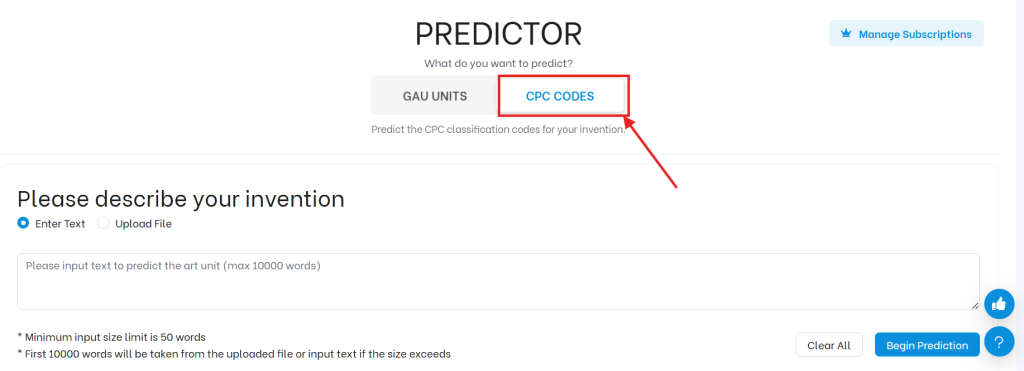
Now, alongside the predicted GAU, you can also see the CPC codes your invention may fall under.
For a closer look at how the feature works, check out our step-by-step guide to using CPC Prediction in the Predictor.
Why Does This Matter?
- Get a more detailed view before filing. GAU Prediction gives you an idea of where your application may land for examination. CPC Prediction takes you deeper into the technical areas your invention may fall under.
- See more than one possible CPC code. An invention can span multiple technical areas. The Predictor shows relevant CPC codes along with confidence levels, helping you see which classifications may be a stronger match.
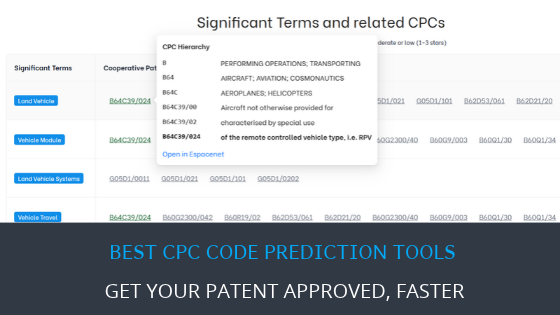
- Understand what is behind the prediction. Significant Terms highlight important terms from your invention and connect them with related CPC codes.
- Add historical allowance rate context. The CPC vs. Allowance Rate view shows historical allowance data associated with relevant CPC codes.
Together, GAU and CPC Prediction give you a more complete view before filing. You can estimate where your application may land for examination while also seeing the technical classifications that may apply to your invention.
2. Patent Lookup, A New Module: Now Find and Review Patent Records Within the TIP Tool™
Every patent application at the USPTO carries a long paper trail. Google Patents and Patent Public Search can help you find basic patent information.
But related records may sit elsewhere or even require a USPTO account or an ODP-registered email address to access. This includes fee records and transaction history. Finding these records often means moving between multiple websites.
That is the friction Patent Lookup is designed to reduce. Enter a patent number, application number, or publication number in the TIP Tool™.
The tool then brings the available information into one structured view. You can review application data, documents, transactions, continuity details, and other records.
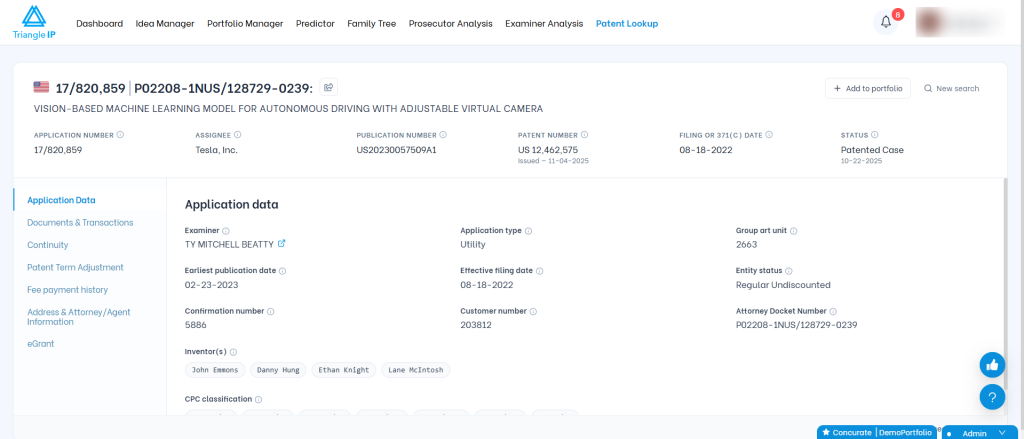
This makes it easier to review one published patent without switching between multiple sources.
To learn more, read our guide on using Patent Lookup in the TIP Tool™.
Why Does This Matter?
- Bring scattered patent information into one view. Review application data, prosecution documents, transactions, continuity details, fee records, and other information without moving between multiple sources.
- Understand the prosecution history faster. See the documents and transactions associated with an application to understand how it has progressed through the patent office.
- Trace related patent applications more easily. Review parent and child applications to understand how a patent fits within the broader family.
- Make patent research easier to share and act on. Save relevant applications to your portfolio or share the patent record with stakeholders when needed.
The free plan includes 2 patent searches per portfolio. Under the Premium plan, you can perform up to 10 patent searches per portfolio.
3. A New Feature in the Portfolio Manager: Now Choose Your View of US and International Applications
During a recent customer call, we spoke with an IP professional managing patent filings across multiple countries. He wanted patent management software that could give him an overall view of all their patents.
The latest Portfolio Manager update addresses that need. In the TIP Tool™, the Portfolio Manager shows US and international applications in separate tabs by default.
But if your team prefers a consolidated view, Admins can now set the portfolio view to display them together in a single Applications tab, as you are seeing below.
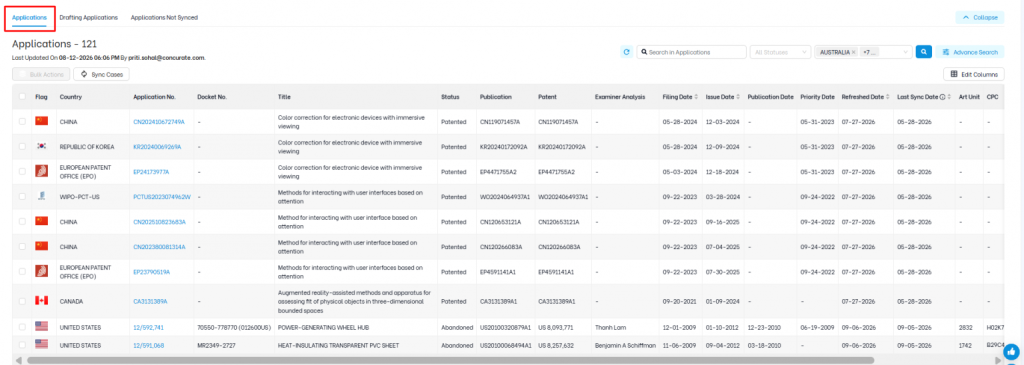
Check out our guide, How Can I Switch Between the Separate and Combined Views of US and International Applications in the Portfolio Manager?, for step-by-step instructions on configuring your preferred view in the TIP Tool™.
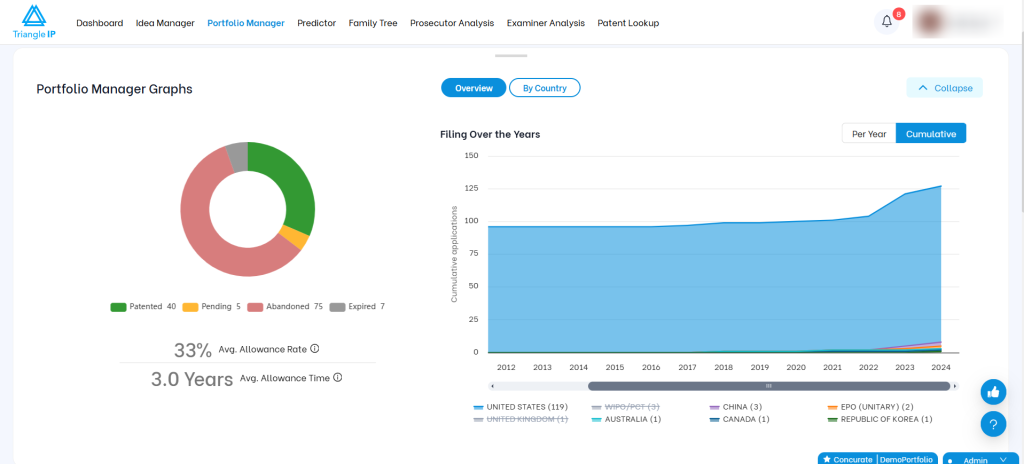
The combined view gives you a visual overview of your global patent portfolio.
The Overview panel in the carousel shows:
- Status Overview – A donut chart showing how many applications are Patented, Pending, Abandoned, or Expired.
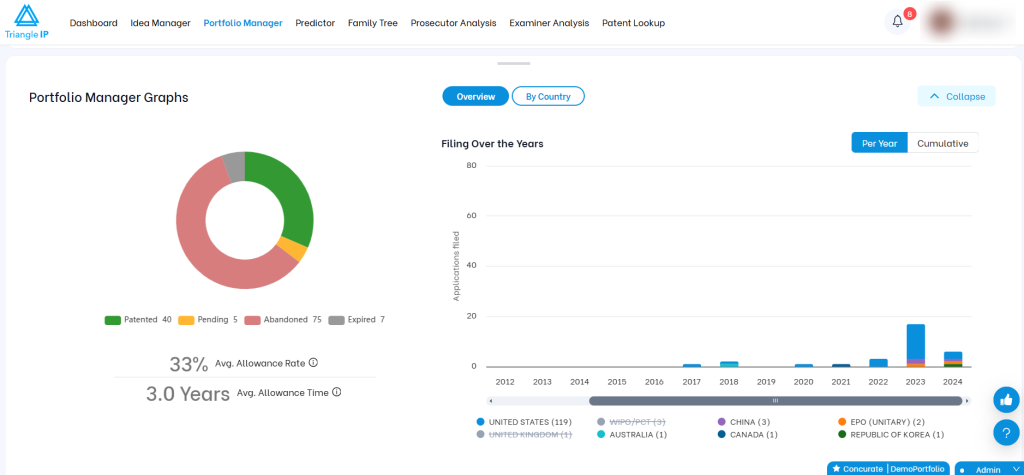
- Filing Over the Years – A country-wise view of your filing activity, which you can switch between Per Year and Cumulative to understand both annual filing trends and overall portfolio growth.
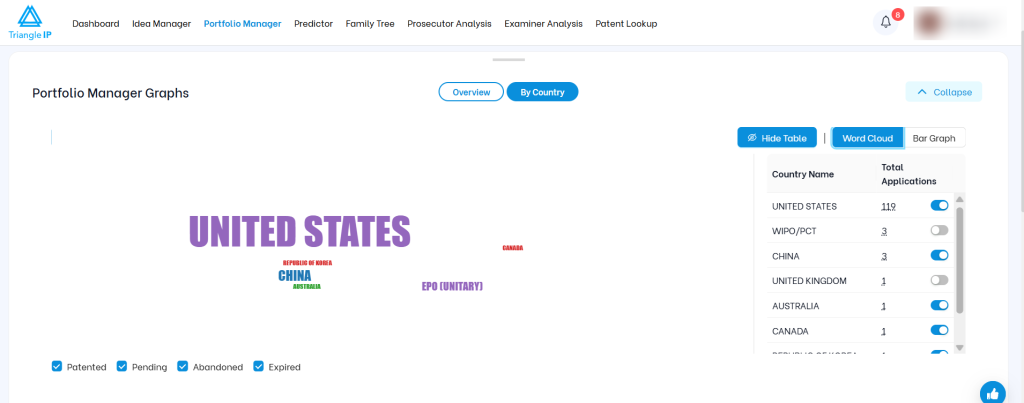
The next panel gives you a By Country view.
- Word Cloud – Shows each country sized by the number of patent applications you hold there, helping you quickly see where your portfolio is concentrated.
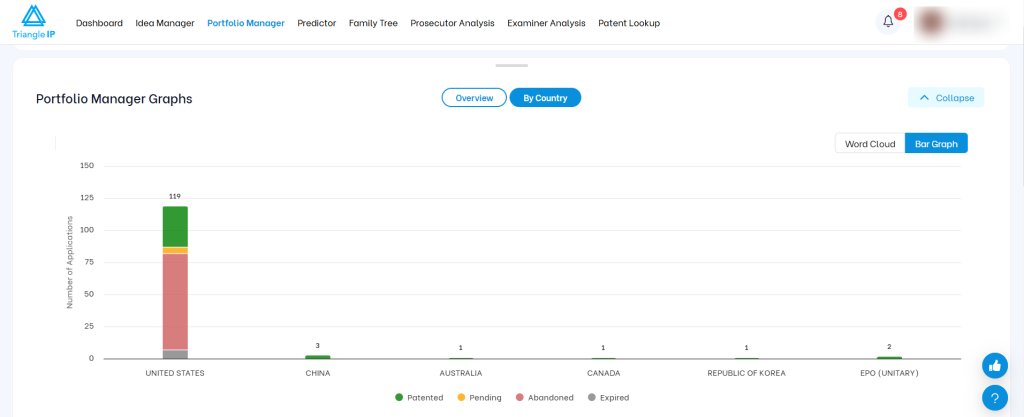
- Bar Graph – Displays patent applications by country as stacked bars, with each bar broken down by application status.
Summing It Up
The TIP Tool™ keeps rolling out new features based on user feedback and the challenges patent teams face in their day-to-day workflows.
Each update is designed to reduce friction, whether you are planning prosecution, researching patents, or managing your portfolio.
To stay updated, follow our blog and YouTube channel. You can also sign up for free to explore the TIP Tool™ yourself or fill out the form below for a tailored demo.
Frequently Asked Questions
1. Can I Switch Back to The Default View in The Portfolio Manager Later?
Yes. You can switch between the combined and separate views whenever your needs change. Only the account Owner or an Admin can change this setting.
2. How Do CPC Prediction And Group Art Unit Prediction Differ?
| CPC Prediction | Art Unit Prediction |
| Analyzes your patent draft to predict how your invention may be classified by technology and which CPC codes may apply. | Analyzes your patent draft to predict which examining group may review your patent application in the patent office |
3. Can I Save or Share the Patent Application Details I Find Through Patent Lookup?
Yes. You can add a patent record directly to your Portfolio Manager. You can also generate a shareable link for the patent record. Recipients can open the shared report without a TIP Tool™ account.
To learn more, read our guide on using Patent Lookup in the TIP Tool™.